How to virtually stage a listing, step by step
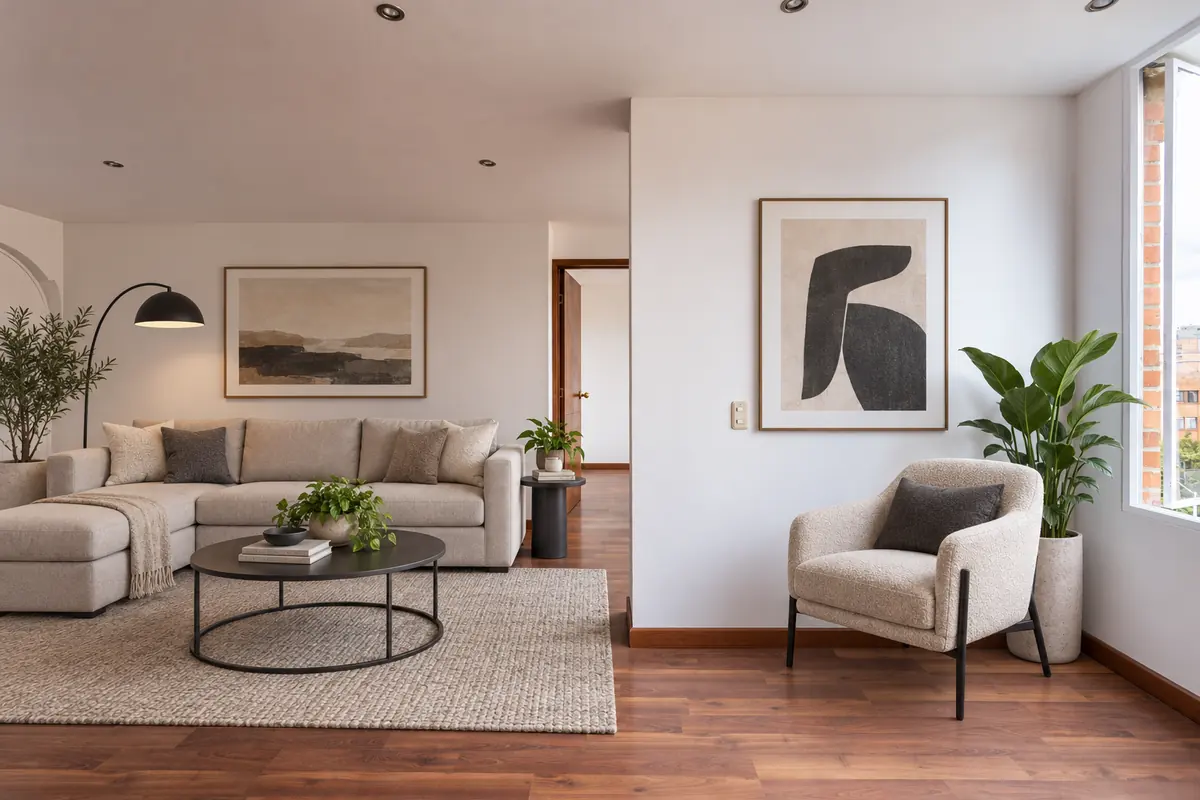
Virtual staging is one of the cheapest ways to make a vacant listing compete with furnished homes. But the difference between staging that helps and staging that hurts is mostly process: which rooms you pick, how you photograph them, how you choose a style and how carefully you check the result before it goes live. This guide walks through the workflow we recommend to agents using AI virtual staging, from the walkthrough to the published listing.
Step 1: Decide which rooms deserve staging
You do not need to stage every room. Buyers spend most of their attention on a handful of photos, and staging a hallway or a laundry room adds cost and, worse, can make a listing feel over‑produced. A good default for a typical house is:
- Living room – usually the cover photo and the first impression. Always stage it. See our living room staging page for examples.
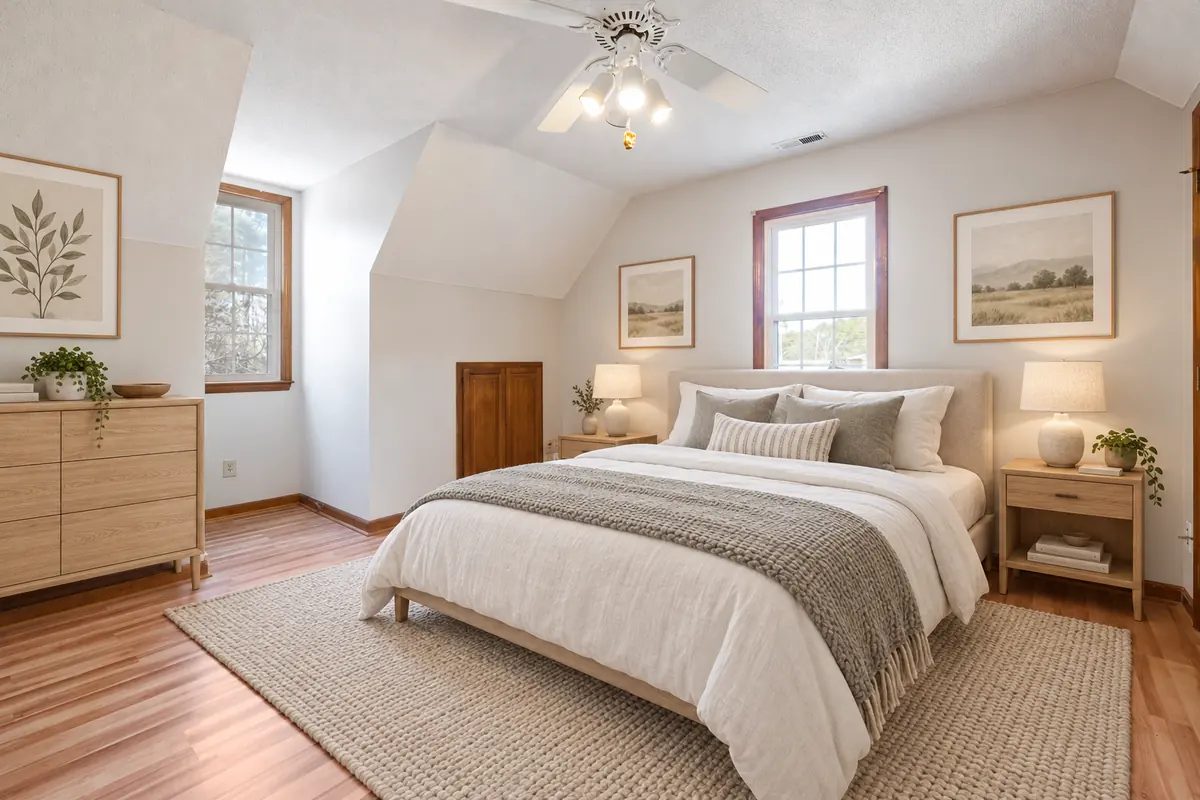
- Primary bedroom – buyers want to know whether a king bed fits and where the nightstands go. Bedroom staging answers that instantly.
- Kitchen or dining area – a few stools at the island and a table in the dining nook make the space feel lived‑in. Our kitchen staging mode never touches cabinets or appliances.
- One flexible room – a small bedroom staged as a home office or nursery widens the buyer pool.
Bathrooms, hallways, closets and garages are best left as photographed. They are judged on condition and finishes, which staging cannot honestly change.
Step 2: Photograph the empty rooms properly
AI staging can only work with what is in the frame. The best input photos share a few traits:
- Shoot from a corner or doorway at chest height (roughly 1.2–1.5 m). This shows the most floor, which the AI needs to place furniture convincingly.
- Keep verticals vertical. Tilted cameras create converging walls; furniture placed into a distorted room looks wrong. Most phones have a level or grid overlay — turn it on.
- Turn every light on and open the blinds. Even light gives the model clear cues for shadows and keeps the staged furniture from looking pasted in.
- Clear the floor completely. Paint cans, boxes and cleaning supplies confuse the model and may be kept or turned into odd objects.
- Use a wide but not ultra‑wide lens. The 0.5× ultra‑wide on phones exaggerates distance; 0.7–1× is usually more realistic.
We cover this in more depth in how to photograph empty rooms for virtual staging.
Step 3: Pick a style that fits the property and the buyer
Style is a marketing decision, not a matter of personal taste. Ask who is most likely to buy the home and what they want to imagine living there. Some rules of thumb:
- Modern is the safest default for condos, new builds and flips. It is neutral and lets the architecture lead.
- Scandinavian works for starter homes and darker rooms: light oak and white textiles make spaces feel bigger and brighter.
- Luxury suits high‑end properties where buyers expect marble, brass and velvet.
- Farmhouse and Coastal fit suburban, rural and beach markets.
- Japandi and Mid‑Century attract design‑conscious urban buyers.
Whatever you choose, use the same style across the whole listing. A modern living room next to a farmhouse bedroom reads as fake. Our guide to choosing a virtual staging style goes deeper.
Step 4: Generate, then compare carefully
Upload the photo in the Studio, choose the room type and style, and add specific wishes if you have them — “a reading chair by the window” or “no rug, the floor is new oak”. Generation takes roughly 30–90 seconds. While you wait, you can queue the next room.
When the result arrives, use the before/after slider and check, deliberately, in this order:
- Architecture. Are all windows, doors, outlets, vents and built‑ins in the same place? StageZap carries a strict structure lock and keeps the aspect ratio of your photo, but every AI edit should be verified by a human.
- Scale. Does the sofa look like a real sofa relative to the door height? Is the bed clearly the right size for the room?
- Walkways. Can you walk from the door to the window? Furniture should never block openings.
- Light and shadow. Do shadows fall in the same direction as the window light?
- Small details. Look for warped legs, floating plants or unreadable art.
If something is off, regenerate — results vary slightly each time — or tweak your wishes. Two or three attempts for the hero shot is normal and still far cheaper than physical staging.
Step 5: Upscale the images you will publish
Portals compress images aggressively, so start with as much resolution as you can. For the photos that will lead the listing or appear in print, use the AI 2K re‑render to get a 2048 px version. For quick social posts, the free in‑browser 2× enlarge is enough and is pixel‑faithful to the staged image.
Step 6: Disclose, and keep the original
Virtually staged photos must not mislead buyers. Label every staged image clearly (“Virtually staged”) in the caption or as a small watermark, and include the empty original in the gallery, ideally right after the staged version. Many MLSs and portals have explicit rules; our article on virtual staging disclosure summarizes the common requirements and how to stay on the right side of them.
Step 7: Order the gallery for impact
Lead with the strongest staged hero image (usually the living room), then alternate staged and original views so buyers see both what the room is and what it could be. End with exterior and neighborhood shots. Keep captions short and factual.
Common mistakes to avoid
- Staging rooms in poor condition. A beautiful sofa in front of a water‑stained wall draws attention to the stain. Fix or disclose condition issues first.
- Over‑staging small rooms. Too much furniture makes rooms look smaller. Ask for “minimal furniture” in small spaces.
- Mixing styles. One style per listing, every time.
- Changing the property. Never use staging to add fireplaces, remove power lines or repaint walls without labeling it as a renovation concept.
- Skipping the check. Five minutes of review protects your reputation.
What does it cost, and is it worth it?
Physical staging for a vacant home typically costs thousands per month in rental fees plus setup. Traditional virtual staging studios charge per photo and take a day or two. With an AI tool you pay per image generated — on StageZap’s Pro plan 600 images a month cost $19 — and you can stage a listing the same afternoon you photograph it. For most vacant listings, staging the three or four key rooms is the highest‑return marketing spend available. You can try virtual staging free on your next listing and compare the click‑through rate against your usual photos.
Checklist
- Pick 3–5 key rooms.
- Shoot level, at chest height, lights on, floor clear.
- Choose one style that fits the likely buyer.
- Generate, compare with the slider, regenerate if needed.
- Upscale the hero images.
- Label staged photos and include the originals.
- Order the gallery: staged hero first, then alternate.
Ready to see your own photo transformed?
Upload one photo. No sign‑up needed for the free demo.
Try it free in the studio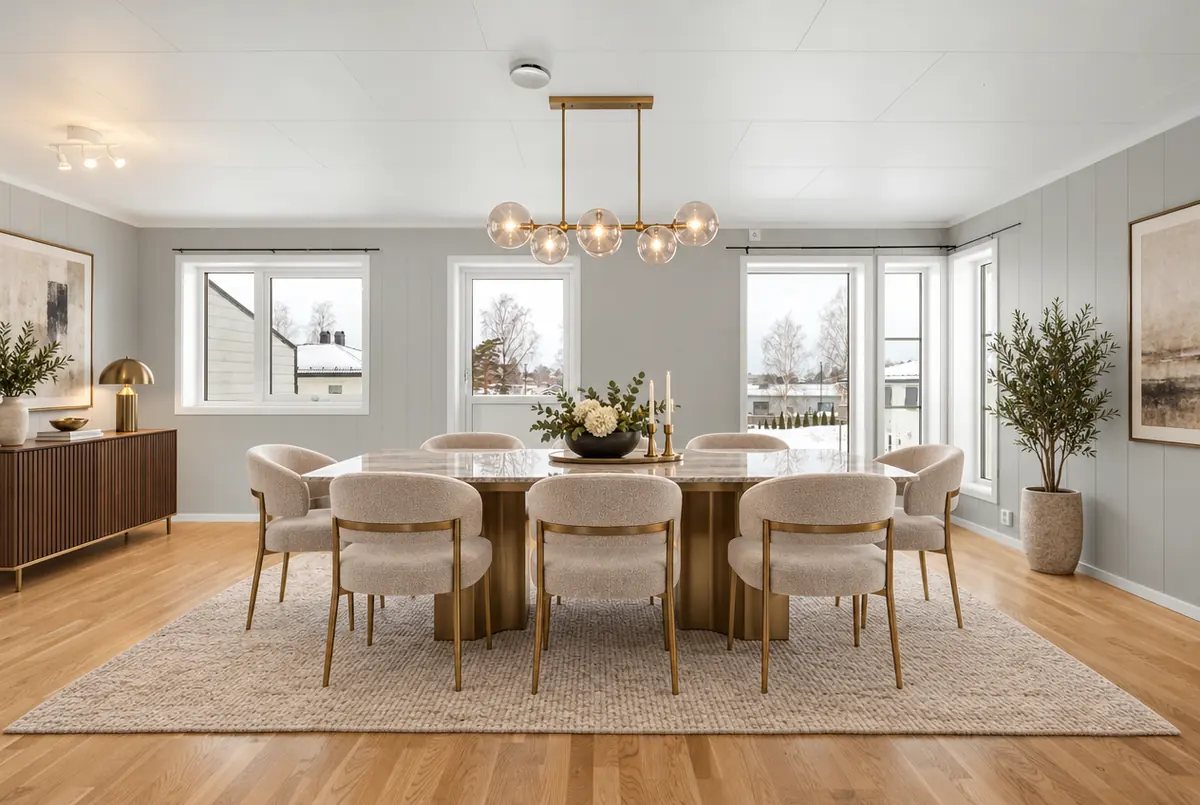 Virtual staging disclosure: how to stay honest and compliant
 Choosing a virtual staging style that matches the buyer