How to photograph empty rooms for better virtual staging
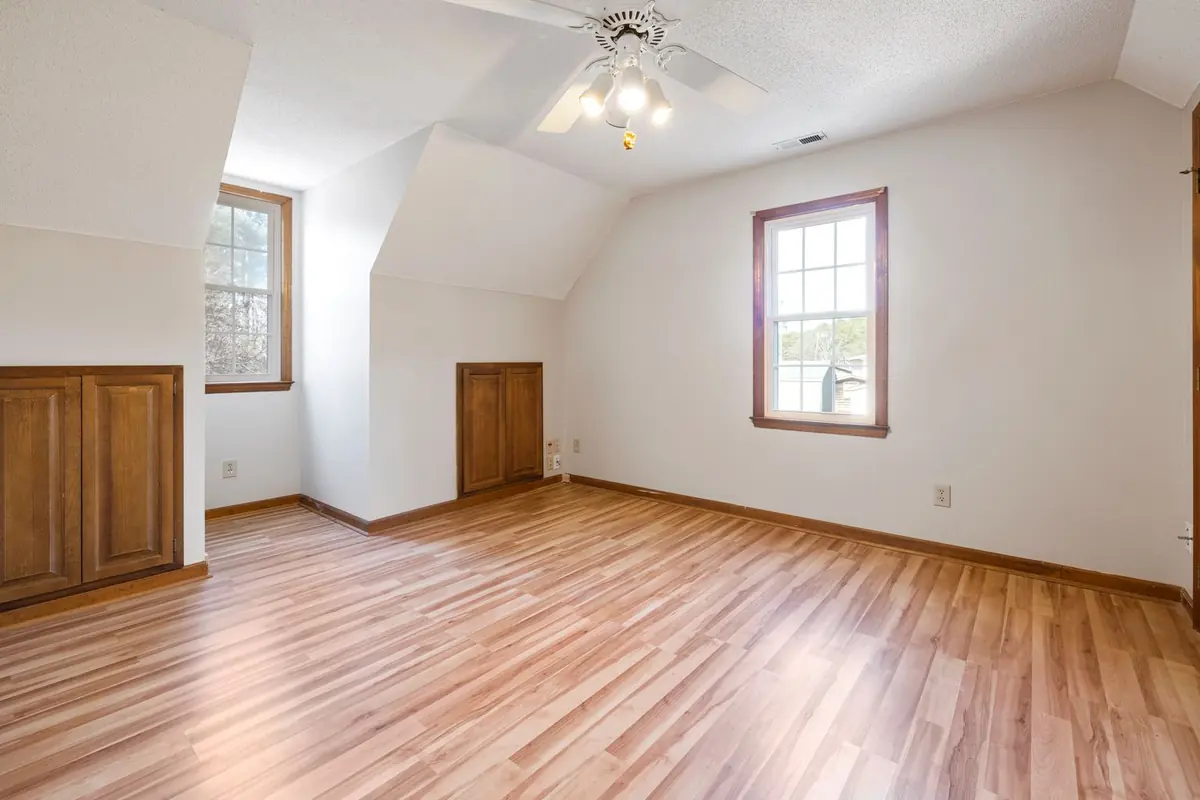
The quality of virtual staging is decided before you open any software. A well‑shot empty room gives the AI a clear floor plane, honest perspective and readable light, so furniture lands in the right place at the right size with believable shadows. A poorly shot room — tilted, dark, cluttered or distorted — produces furniture that floats, shrinks or looks pasted in. This guide covers the practical choices that make the biggest difference, whether you shoot on a phone or a full‑frame camera.
1. Choose the right position
Stand in a corner or doorway so you see two or three walls and as much floor as possible. The floor is where furniture will go; if it is barely in frame, the AI has nowhere to put a sofa. For most rooms the strongest angle looks diagonally across the room toward the main window, which also gives you the most attractive light.
Avoid shooting straight at a blank wall: it hides depth and gives the model no cues for scale. Also avoid placing a door frame or wall edge right at the side of the frame, which tends to look cramped once furniture is added.
2. Get the height right
Hold the camera at roughly chest height, about 1.2–1.5 meters (4–5 feet). Eye‑level shots look down on the floor too much and make ceilings vanish; very low shots exaggerate furniture size and look odd once furniture is added. Chest height also matches how most professional listing photographers shoot, so your staged images will sit comfortably next to other photos in the gallery.
3. Keep verticals vertical
This is the single most important technical rule. If the camera tilts up or down, vertical lines — door frames, wall corners, window edges — converge, and the room appears to lean. When furniture is placed into a distorted room it inherits that distortion and looks wrong. Turn on the grid or level in your phone’s camera app and keep it perfectly level. If you need more ceiling or floor in frame, step back or adjust height rather than tilting. Many editing apps can correct verticals after the fact, but it is better to get it right in camera.
4. Pick a sensible lens
Ultra‑wide lenses (the 0.5× setting on most phones, or 12–14 mm on full frame) make rooms look larger but stretch objects near the edges. Staged furniture near the frame edges then looks warped. A moderate wide angle — around 0.7–1× on phones or 16–20 mm on full frame — is the sweet spot: wide enough to show the room, natural enough for furniture to look right. If you must use ultra‑wide for a tiny room, keep important areas away from the edges.
5. Light the room evenly
- Open all blinds and curtains and turn on every light, including lamps and under‑cabinet lighting.
- Shoot on a bright overcast day or when direct sun is not hitting the floor; hard sun patches create extreme contrast and confusing shadows.
- Use HDR mode on your phone, or bracket exposures on a camera, so both the window view and the room interior are visible.
- Avoid mixed color temperatures where possible. Very orange bulbs combined with blue daylight make it harder for the AI to match furniture color to the room.
The AI matches its added shadows and highlights to the light it sees. Clean, even light gives clean, believable shadows.
6. Clean the room completely
Remove everything from the floor: paint cans, ladders, boxes, cleaning supplies, extension cords. Take down stray hooks or tape if you can. Leftover objects are either preserved (and look strange next to new furniture) or reinterpreted into odd items. For rooms with existing furniture, note that StageZap’s staging is designed for empty rooms; declutter first, or use the Edit tab’s declutter preset and check the result carefully.
7. Shoot for the aspect ratio you need
Most listing portals display landscape images at 3:2 or 4:3. Shoot in landscape orientation, and keep the important parts of the room away from the extreme edges in case the portal crops. StageZap keeps your photo’s aspect ratio when staging, so what you shoot is what you get.
8. Take more than one angle
For each key room, take two or three angles. Some angles stage better than others — a view across the room toward the window often stages best, while a view back toward the door may show more walkways and fewer focal points. Stage the best one, and use a second angle staged in the same style if the room is important enough.
9. Resolution and file handling
Use the highest resolution your device offers, but you do not need RAW files for staging. Export JPG or PNG under 10 MB. StageZap automatically downsizes very large photos to 2048 px on the long side before upload, which keeps things fast without losing quality that the model would use. Avoid heavy filters or “vivid” modes; neutral color helps the staging blend in.
10. Common problems and fixes
- Furniture looks too small: usually an ultra‑wide lens or a camera too high. Reshoot at chest height with a moderate lens.
- Furniture floats: the floor plane is unclear, often due to very dark floors or harsh sun patches. Even out the light.
- Walls lean in the result: the original was tilted. Correct verticals before staging.
- Odd objects appear: something was left on the floor. Clear it and regenerate.
- Colors look off: mixed lighting. Turn off strongly colored bulbs or shoot at a different time.
Phone or camera?
For staging, a recent phone is enough. Phones handle HDR automatically and their main lens has a moderate wide angle that suits rooms. A dedicated camera with a tripod gives more control in very dark rooms and allows longer exposures without noise, but the AI input is downsized anyway, so the advantage is smaller than for print. What matters far more than the device is position, level and light.
Pre‑shoot checklist
- Floor completely clear; blinds open; all lights on.
- Camera at chest height, perfectly level, grid on.
- Moderate wide angle, landscape orientation.
- Corner or doorway position looking toward the window.
- HDR on; no filters.
- Two or three angles per key room.
Once you have the photos, follow our step‑by‑step staging workflow, pick a style with our style guide, and stage the living room, bedroom and kitchen first. You can try it free on the photos you just took.
Ready to see your own photo transformed?
Upload one photo. No sign‑up needed for the free demo.
Try it free in the studio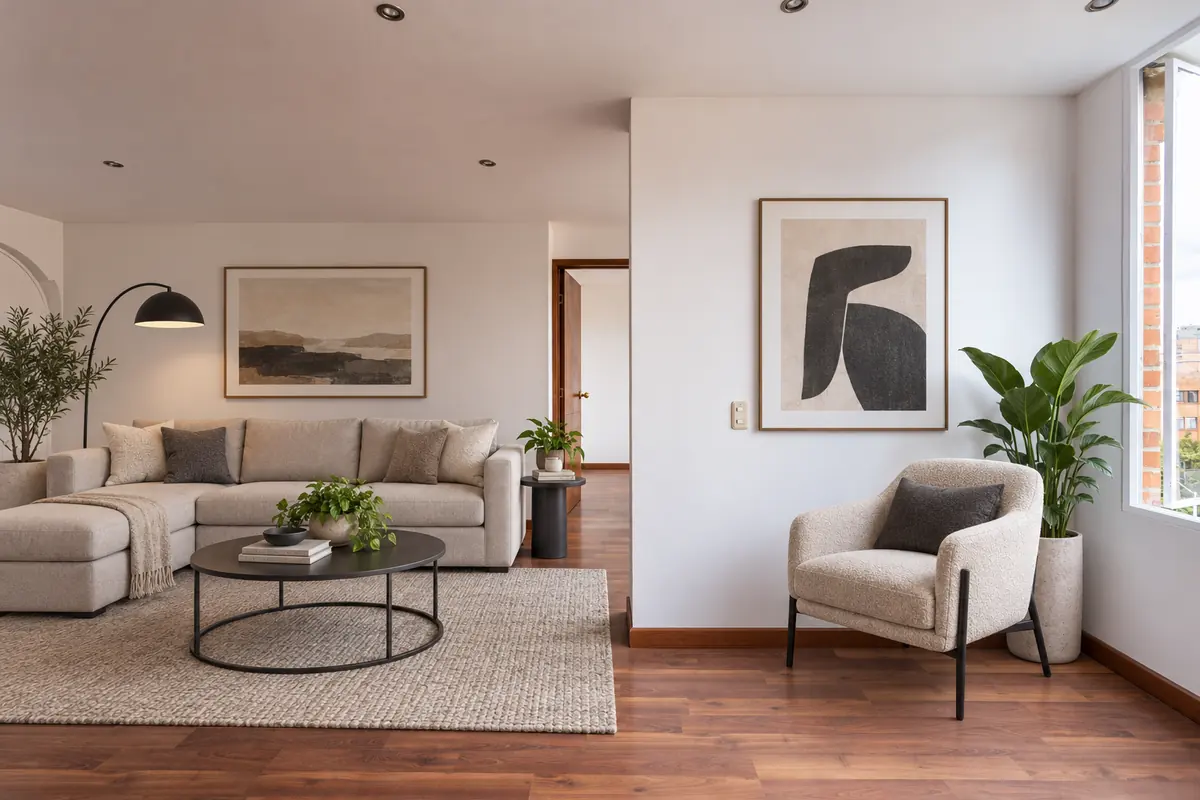 How to virtually stage a listing, step by step
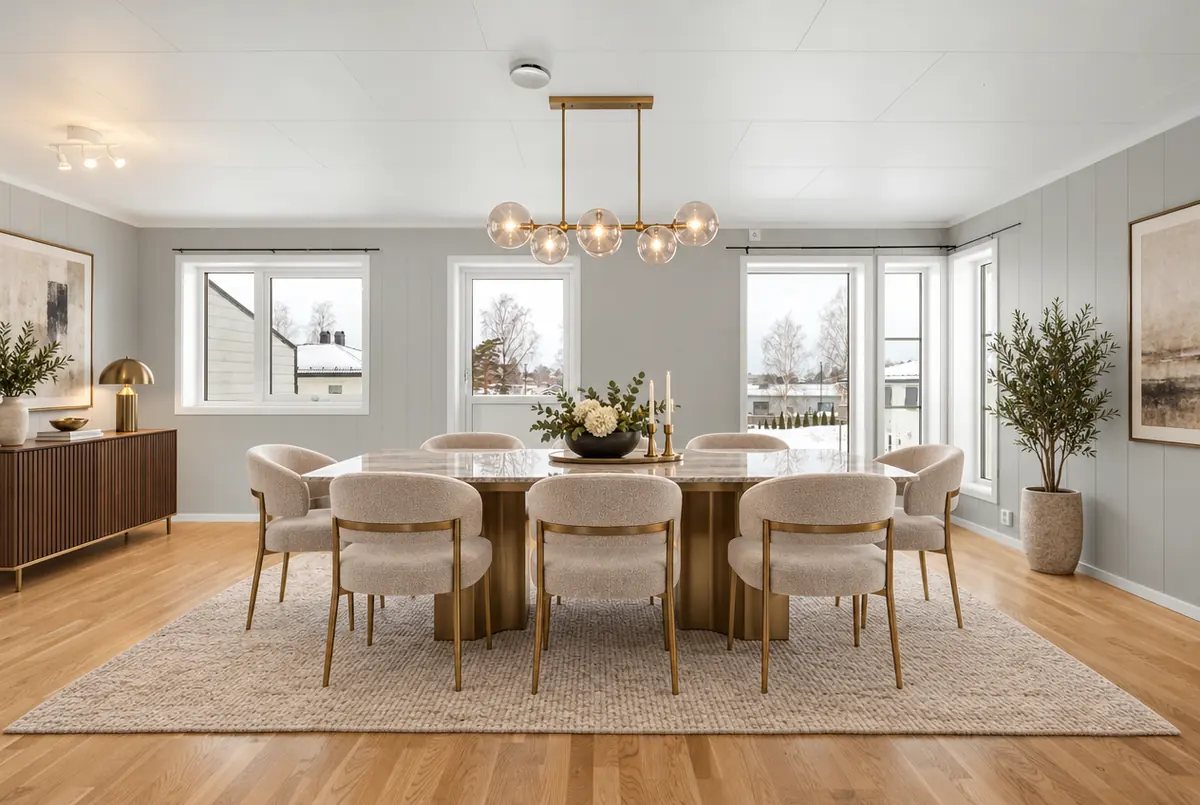 Virtual staging disclosure: how to stay honest and compliant