Shooting Shopify product photos with your phone
You do not need a studio to have a store that looks like a brand. Modern phones capture more than enough detail for e‑commerce, and AI can handle the parts that used to require studio gear: perfect white backgrounds, consistent lighting and on‑brand lifestyle scenes. What matters is a repeatable workflow. This guide walks through one that works for small Shopify stores, from the shoot to the final upload.
Why consistency matters more than perfection
On a Shopify collection page, shoppers see your products side by side. If one image is warm and another cool, one product is tiny and another huge, the store looks improvised and trust drops. A consistent set — same background, same angle, same framing — reads as professional even when each photo is simple. Every step below is designed to make your images consistent, not just good.
Step 1: Set up a simple phone “studio”
- Light: a large window with indirect daylight is the best free light source. Put the product about a meter from the window, side‑lit. Avoid direct sun.
- Surface: a sheet of white foam board or poster paper curved up a wall gives a clean base. It does not have to be perfect — AI will replace the background — but a clean base helps edges.
- Fill: a second white board on the opposite side of the window bounces light into shadows.
- Stability: a cheap phone tripod keeps angles identical across products.
Step 2: Camera settings
- Use the main (1×) lens or the 2× telephoto; avoid ultra‑wide, which distorts products.
- Tap to focus on the label, then lower exposure slightly to keep white areas from blowing out.
- Turn off filters, portrait mode and beauty effects.
- Clean the lens. It sounds obvious; it is the most common cause of soft images.
Step 3: Shoot a standard set for every product
Decide your standard angles once and repeat them. A typical set:
- Front, straight on, at product height — this becomes your catalog image.
- Three‑quarter view, showing depth.
- Back or side for important details.
- One close‑up of material, texture or label.
Keep the label sharp and readable in the front shot. AI tools that preserve text work best when the original text is clear.
Step 4: Create the catalog image on white
Upload the front shot to StageZap’s white background mode. The product is re‑rendered on seamless #FFFFFF with even studio lighting and a soft contact shadow, centered with consistent fill. Because the background and light are generated the same way each time, products shot on different days still look like one set. Shopify recommends square images around 2048 × 2048 px for product photos; use the AI 2K upscale for that size.
Step 5: Add lifestyle images that fit your brand
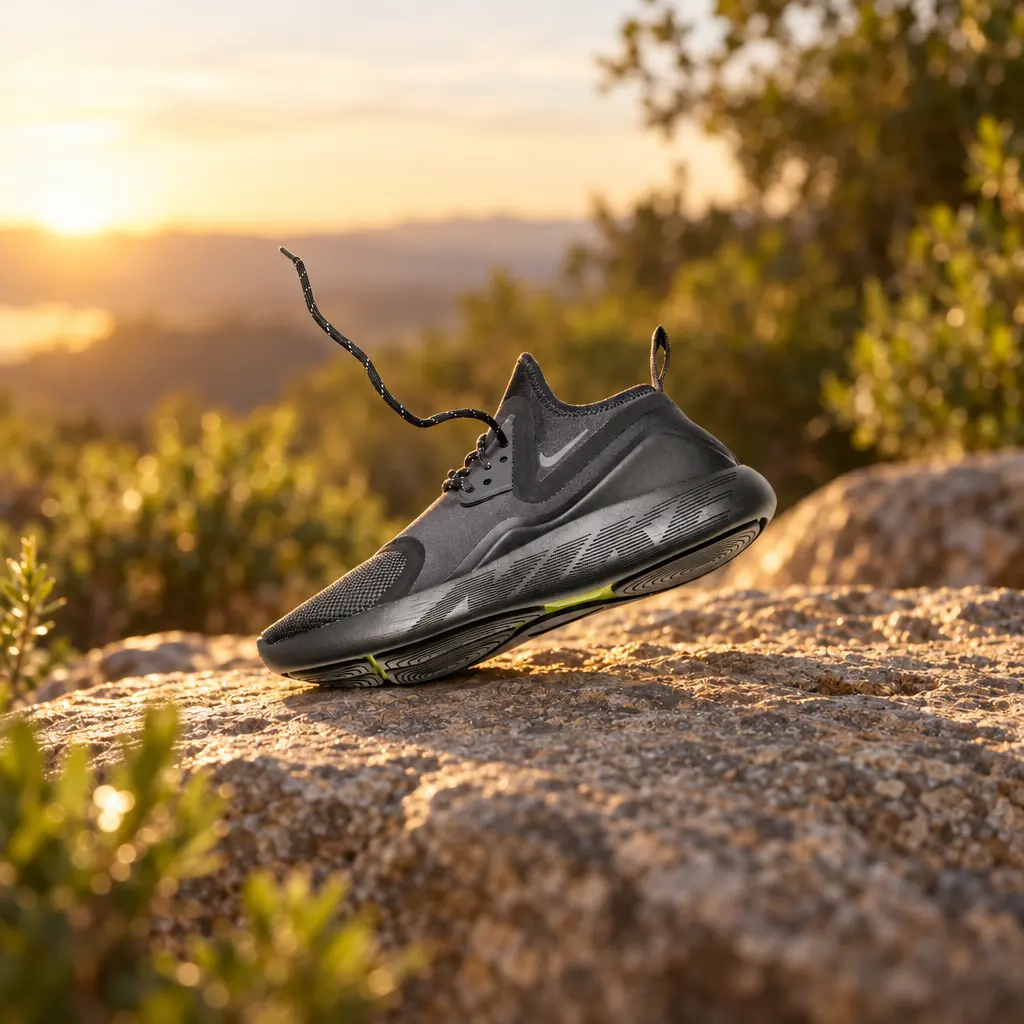
Lifestyle images show the product in use and set the mood of your brand. In StageZap’s Lifestyle mode you choose a scene — marble kitchen, living room, outdoors, podium, desk or spa bathroom. Pick one or two scenes that suit your brand and use them for every product in a collection; that consistency is what makes a store feel curated. Our Shopify product photos page shows a running shoe placed outdoors at golden hour from a plain studio shot.
Step 6: Make ad creatives from the same photo
The same front shot can become a poster with your headline, subline and call‑to‑action for Meta, TikTok or email. Write short copy — three to five words for the headline — and always proofread the generated text. Test two or three headlines; creative is usually the biggest lever in paid social performance.
Step 7: Review before you publish
- Zoom to 100% and compare the label and logo with the real product.
- Check colors against the product in daylight; accurate color reduces returns.
- Confirm framing is consistent with the rest of the collection.
- Remove any image where details differ from what ships.
Step 8: Upload with SEO in mind
- File names: rename files descriptively before upload, e.g.
trail-running-shoe-black-side.webp, notIMG_4821.jpg. - Alt text: describe the image for people who cannot see it: “Black trail running shoe on a rock at sunset.” Shopify lets you edit alt text per image; it helps accessibility and image search.
- Format and size: Shopify serves optimized formats automatically, but uploading reasonably sized images (2048 px square, under a few MB) keeps the admin fast.
- Order: put the white catalog image first for collection consistency, then lifestyle, details and scale.
Step 9: Keep a style guide
Write down your decisions: tripod height, angle, distance, which StageZap scenes you use, headline tone. A one‑page guide lets anyone on your team produce images that match, and makes adding new products a 15‑minute job instead of an afternoon.
Budget and time
A traditional studio shoot can cost a significant amount per product, and turnaround takes days. With a phone, a window and AI re‑photography, a product can go from unboxed to fully imaged in under half an hour. Paid plans cover hundreds of images a month, and batch processing for larger catalogs is part of the Business plan.
Photographing tricky products
Reflective items such as glass bottles, jewelry and chrome pick up everything around them, including you and your phone. Shoot them inside a tent of white paper and step back using the 2× lens. Transparent products benefit from a dark edge card placed just out of frame to define their outline. Clothing looks best on a model or a ghost mannequin; flat‑lays work for casual items if you steam out wrinkles first. Very small items need the camera close and the 2× lens to keep proportions natural; make sure the label is in sharp focus. In all of these cases, a clean, well‑lit input makes the AI output far more accurate.
Refreshing images over time
Seasonal lifestyle images — a spring outdoor scene, a cozy winter interior — keep your homepage and ads fresh without reshooting. Because the catalog image on white stays the same, the store remains consistent while the marketing images change with the season.
Common mistakes
- Using ultra‑wide lenses that distort the product.
- Mixing many different lifestyle scenes in one collection.
- Skipping label checks — the one detail customers notice.
- Uploading tiny images that do not support zoom.
Want the marketplace angle too? Read our guide to Amazon main image requirements, or jump into the studio with the AI product photography preset.
Ready to see your own photo transformed?
Upload one photo. No sign‑up needed for the free demo.
Try it free in the studio Amazon main image requirements, explained for sellers